I was challenged the other day on the digirig forum to produce documentation that showed how to use Winlink/Vara HF with a KX3. I have all of the hardware and have created connections before but had never documented them so I setout to document everything that I could, this also included reading documentation that was made in the post, which was partially helpful in getting everything to work.
In short I followed the references and did some of my own testing and intend to include my own photos and screenshots to help others get their KX3 on the air with Winlink/VARA HF
Original Post: https://forum.digirig.net/t/has-anyone-out-there-got-a-digirig-mobile-to-work-with-a-kx3-winlink-vara-hf/10384
The Setup
-
KX3 https://elecraft.com/products/kx3-all-mode-160-6-m-transceiver
-
Digirig Mobile https://digirig.net/product/digirig-mobile/
-
Digirig USB-C cable https://digirig.net/product/short-usb-c-to-usb-c-cable/
-
Digirig KX3 (combined short) Cables: https://digirig.net/product/elecraft-kx-cables/
-
DX Commander (Classing plus 80m) https://dxcommander.com/product/classic-80m-kit/
-
LG Gram Computer running Windows 11 Home (26200.8117)
-
Winlink Express 1.7.31.0
-
Winlink Express Account Registration: https://arsfi.org/express.aspx
-
Download Page: https://downloads.winlink.org/User%20Programs/
Make sure that you download the newest version of “Winlink Express”, there are other tools in this directory but I endeavor to only work with this tool.
-
Vara HF (Fully Licensed) 4.9.0
-
License available from a link on the main page.
-
Download also available from a link on the main page.
- You can download from https://downloads.winlink.org/VARA%20Products/ look for VARA HF, do play with other versions of VARA products however those are not going to be covered in this article.
Assumptions made
-
Winlink Express is already installed and registered and you’re able to connect via Telnet to get email.
-
Vara HF is installed and registered, maybe another post on this in the future is in order if I can’t find something on this directly.
How To
-
Start Computer (Just being funny here)
-
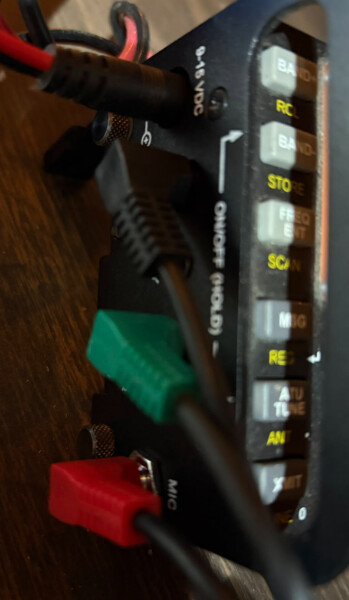
Connect the USB-C cables to your computer and to the DigiRig mobile, and your cables from the DigiRig mobile to your Elecraft KX3. Below is the expected connection setupt into your radio.
-
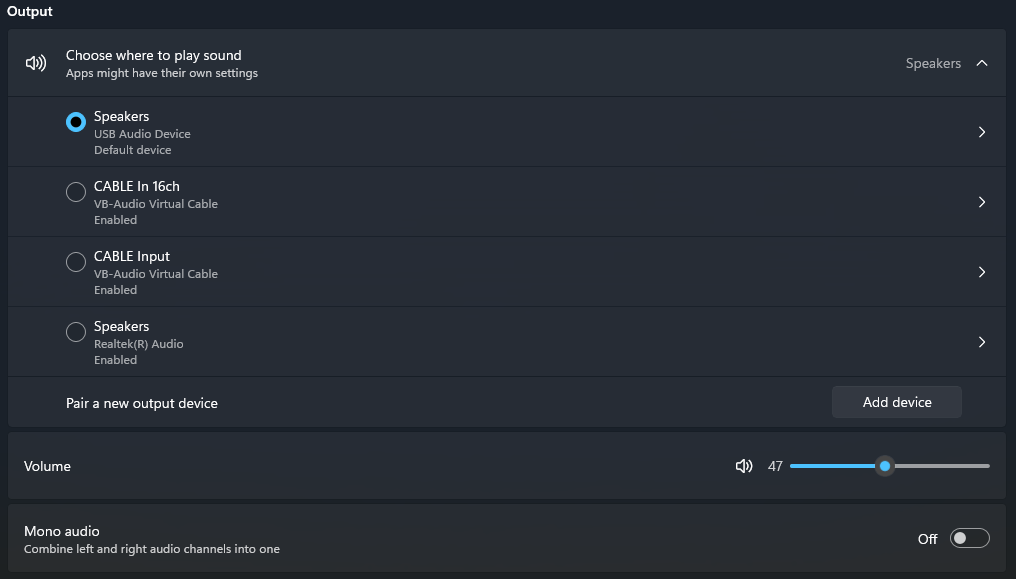
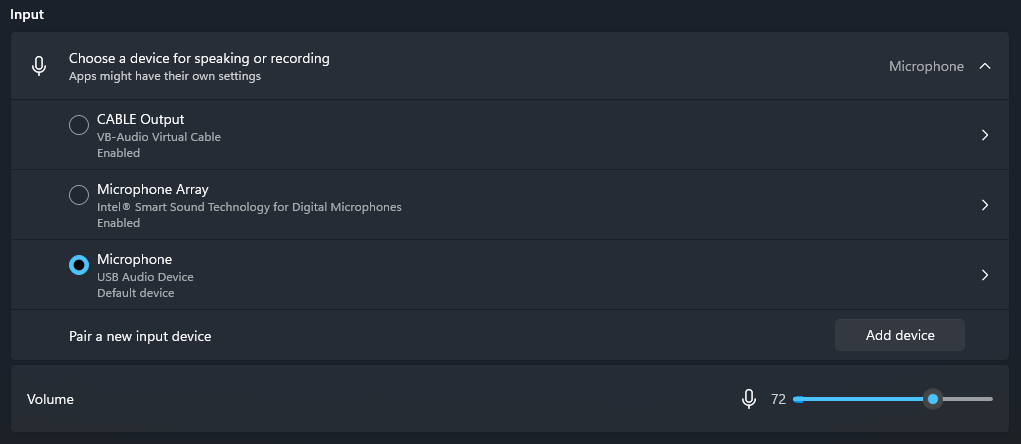
Open “Windows Key (Start Menu)” → “Settings” → “System” → “Sound” and start with your output volumes roughly set to the following. Be ready to come back to this an monitor the “Input” to see if it’s getting too loud.
-
Output Screenshot
-
Input
-
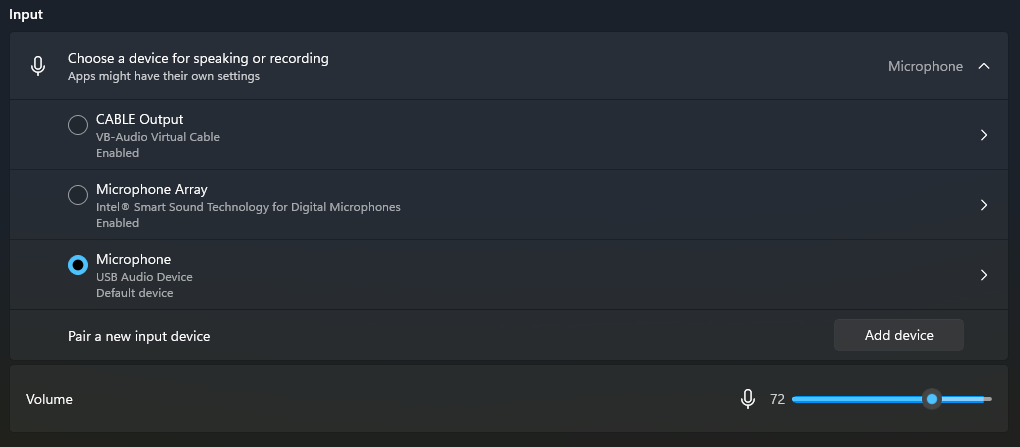
Be careful as the sound can overwhelm things if you’re not watching it and you would need to turn down the volume. Notice in the screen shot that follows that the volume passes the dot volume slider.
-
-
Open Winlink Express
-
Set Your session type to “Vara HF Winlink” and click “Open Session”

-
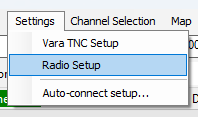
In the Window that opens for connecting the Vara HF Session Click “Radio Settings”
-
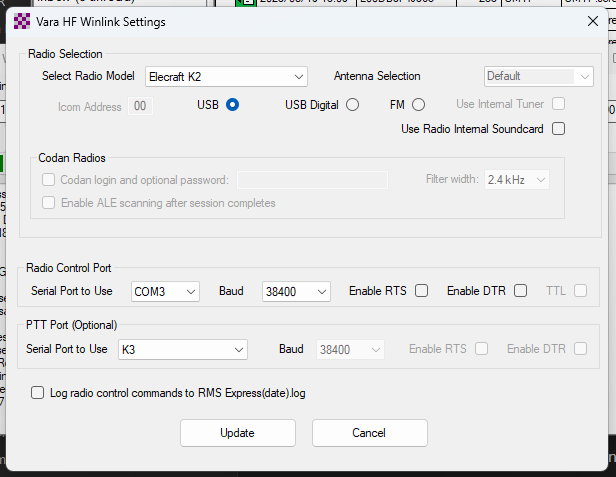
Choose the following settings, be aware that your “Serial Port in Use” or “COM” port may differ but should be available in the dropdown, if you didn’t connect your digirig lite prior to getting to this step go ahead and connect now and restart Winlink Express before continuing on.
-
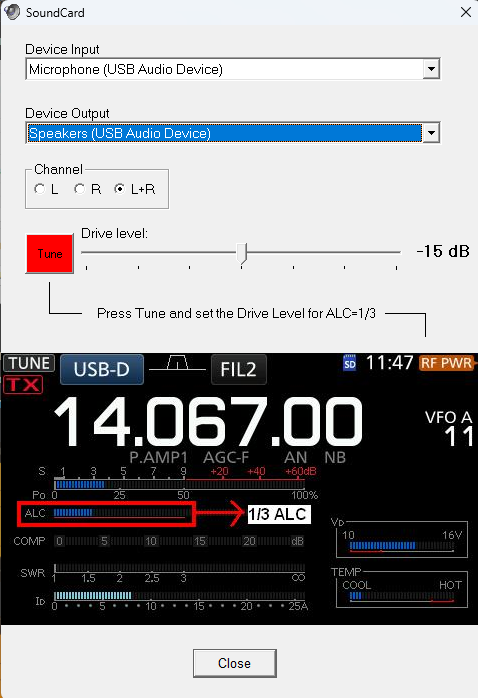
Make sure to set your audio settings in VARA HF → Settings → Sound Card are set roughly to the following volumes.
-
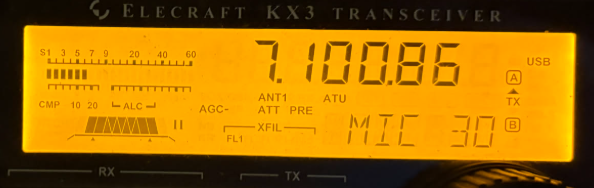
For connecting to a couple of local VARA HF I used the following settings for my radio, VARA did a great job connecting to local RMS stations and the speed was MUCH faster than otherwise experienced using other winlink connection
-
Mic Gain Set to 30
-
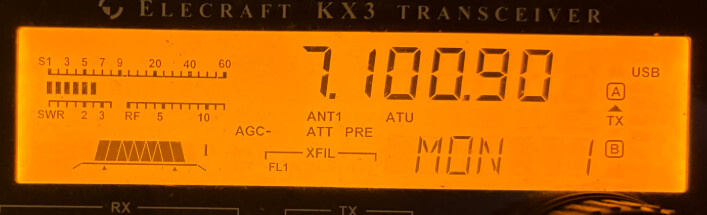
Monitor Set to 1 (This just so that you can hear it sending if you unplug “Phones”)
-
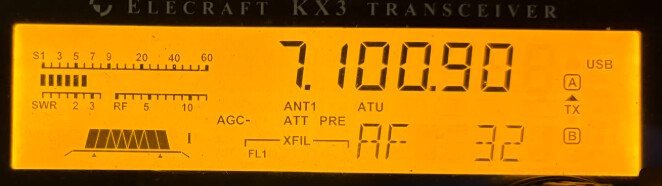
AF Set to 32
-
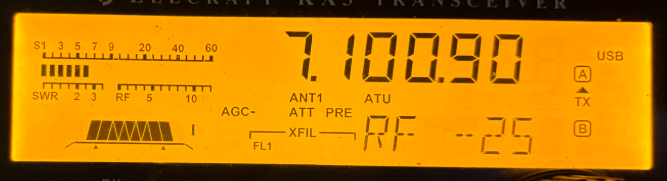
RF Set to 25
-
Make sure to turn off AAT, I know that it’s on in the above screen shots.
-
Make sure to turn off PRE, I know that it’s on in the above screen shots.
-